Using our new ticketing option to submit a support request is simple and efficient. Here is a quick guide on how to navigate the process:
Step 1. Visit the Ticketing Website: Go to https://support.yanot.ng scroll down and click on submit ticket.
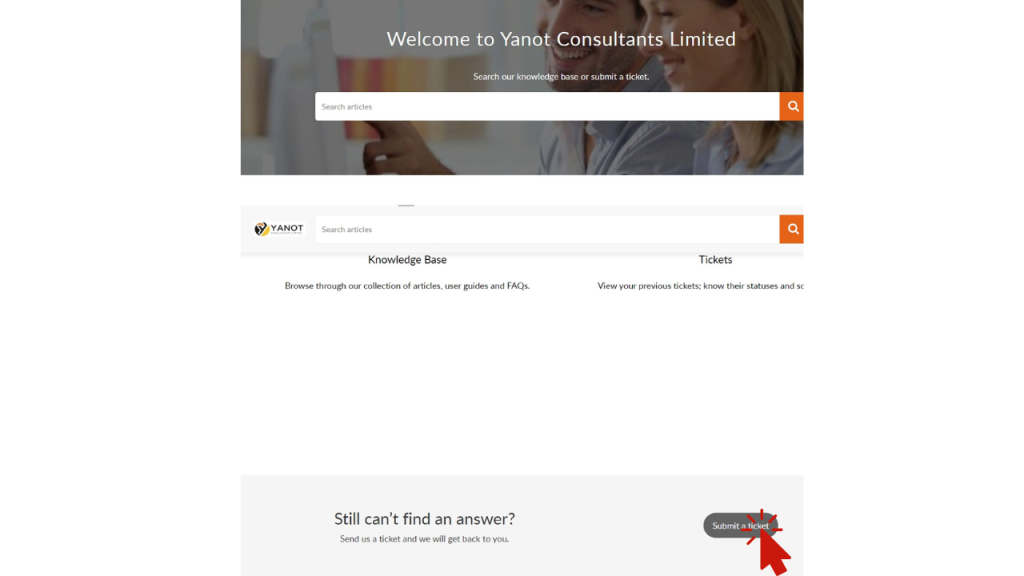
Step 2. Once you click on “Submit Ticket,” you should be directed to the next page where you can fill out your ticket and specify the reason for opening it.

Step 3. Fill Out the Contact Form: Begin by entering your contact information, including your name, email address, and subject. The subject should be a brief description of the reason for opening the ticket, such as “Error 404.” This helps the support team quickly understand the issue and ensures they can reach you with updates.

Step 4. In the description box, briefly state the reason for opening the ticket. For example, if your system is showing Error 404, you might write: “My website is functioning normally, but the system repeatedly shows Error 404. I have restarted the system and reconnected with my service provider, but the issue persists.” This clear and concise description helps the support team understand the problem and take appropriate action.

Step 5. Enter the Product Name: Specify the name of the product or service you need help with. This helps the support team quickly identify the issue.

Use the dropdown menu to select the product. If your specific product is not listed, choose either “Hardware” or “Software” from the dropdown and then provide the exact product name in the description box. This ensures that the support team knows exactly what you need assistance with.

Step 6. Classify Your Ticket: Use the dropdown menu to select the appropriate category for your ticket. This helps us direct your request to the correct department, ensuring a quicker response to your issue.

Step 7. Set the Ticket Priority: Indicate the urgency of your issue by selecting the appropriate priority level—low, medium, or high. This helps the support team prioritize your request and respond accordingly.

Step 8. Attach Documents: If you have any relevant documents, such as screenshots, invoices, or error messages, attach them to the form. Providing these details can help the support team resolve your issue more quickly and efficiently.

Step 9. Complete the Google Word Verification and Submit Your Ticket: To prevent spam, you will be asked to complete a Google word verification (captcha). Simply type the characters displayed into the box. Once you have done this, click “Submit” to send your ticket to the support team.

After submitting your ticket, you will receive a confirmation email with your ticket number. You can use this number to track the status of your request.
By following these steps, you ensure that your ticket is correctly submitted and that the support team has all the information they need to assist you effectively.
